Showing posts with label CSS. Show all posts

Thursday, May 5, 2016

CSS Colors

Colors are displayed combining RED, GREEN, and BLUE light.

Colors in CSS are most often specified by:
  • a valid color name - like "red"
  • an RGB value - like "rgb(255, 0, 0)"
  • a HEX value - like "#ff0000"

Color Names

Colors set by using color names:

Example

ColorName
 Red
 Green
 Blue
 Orange
 Yellow
 Cyan
 Black
Note: Color names are case-insensitive: "Red" is the same as "red" or "RED".

RGB (Red, Green, Blue)

RGB color values can be specified using this formula: rgb(red, green, blue).
Each parameter (red, green, blue) defines the intensity of the color between 0 and 255.
For example, rgb(255,0,0) is displayed as red, because red is set to its highest value (255) and the others are set to 0. Experiment by mixing the RGB values below:
RedGreenBlue
25500
rgb(255, 0, 0)

Example

ColorRGB
 rgb(255,0,0)
 rgb(0,255,0)
 rgb(0,0,255)
 rgb(255,165,0)
 rgb(255,255,0)
 rgb(0,255,255)
Shades of grey are often defined using equal values for all the 3 light sources:

Example

ColorRGB
 rgb(0,0,0)
 rgb(128,128,128)
 rgb(255,255,255)

Hexadecimal Colors

RGB values can also be specified using hexadecimal color values in the form: #RRGGBB, where RR (red), GG (green) and BB (blue) are hexadecimal values between 00 and FF (same as decimal 0-255).
For example, #FF0000 is displayed as red, because red is set to its highest value (FF) and the others are set to the lowest value (00). Note: HEX values are case-insensitive: "#ff0000" is the same as "FF0000".

Example

ColorHEX
 #FF0000
 #00FF00
 #0000FF
 #FFA500
 #FFFF00
 #00FFFF
Shades of grey are often defined using equal values for all the 3 light sources:

Example

ColorHEX
 #000000
 #808080
 #FFFFFF

CSS How To...


When a browser reads a style sheet, it will format the HTML document according to the information in the style sheet.

Three Ways to Insert CSS

There are three ways of inserting a style sheet:
  • External style sheet
  • Internal style sheet
  • Inline style

External Style Sheet

With an external style sheet, you can change the look of an entire website by changing just one file!
Each page must include a reference to the external style sheet file inside the <link> element. The <link> element goes inside the <head> section:

Example

<head>
<link rel="stylesheet" type="text/css" href="mystyle.css">
</head>
An external style sheet can be written in any text editor. The file should not contain any html tags. The style sheet file must be saved with a .css extension.
Here is how the "myStyle.css" looks:
body {
    background-color: lightblue;
}


h1 {
    color: navy;
    margin-left: 20px;
}
NoteDo not add a space between the property value and the unit (such as margin-left:20 px;). The correct way is: margin-left:20px;

Internal Style Sheet

An internal style sheet may be used if one single page has a unique style.
Internal styles are defined within the <style> element, inside the <head> section of an HTML page:

Example

<head>
<style>
body {
    background-color: linen;
}


h1 {
    color: maroon;
    margin-left: 40px;
}
 
</style>
</head>

Inline Styles

An inline style may be used to apply a unique style for a single element.
To use inline styles, add the style attribute to the relevant element. The style attribute can contain any CSS property.
The example below shows how to change the color and the left margin of a <h1> element:

Example

<h1 style="color:blue;margin-left:30px;">This is a heading.</h1>
NoteAn inline style loses many of the advantages of a style sheet (by mixing content with presentation). Use this method sparingly!

Multiple Style Sheets

If some properties have been defined for the same selector (element) in different style sheets, the value from the last read style sheet will be used. 

Example

Assume that an external style sheet has the following style for the <h1> element:
h1 {
    color: navy;
}
then, assume that an internal style sheet also has the following style for the <h1> element:
h1 {
    color: orange;    
}
If the internal style is defined after the link to the external style sheet, the <h1> elements will be "orange":

Example

<head>
<link rel="stylesheet" type="text/css" href="mystyle.css">
<style>
h1 {
    color: orange;

}

</style>
</head>
However, if the internal style is defined before the link to the external style sheet, the <h1> elements will be "navy":

Example

<head>
<style>
h1 {
    color: orange;

}

</style>
<link rel="stylesheet" type="text/css" href="mystyle.css">
</head>

Cascading Order

What style will be used when there is more than one style specified for an HTML element?
Generally speaking we can say that all the styles will "cascade" into a new "virtual" style sheet by the following rules, where number one has the highest priority:
  1. Inline style (inside an HTML element)
  2. External and internal style sheets (in the head section)
  3. Browser default
So, an inline style (inside a specific HTML element) has the highest priority, which means that it will override a style defined inside the <head> tag, or in an external style sheet, or a browser default value.

CSS Syntax and Selectors


CSS Syntax

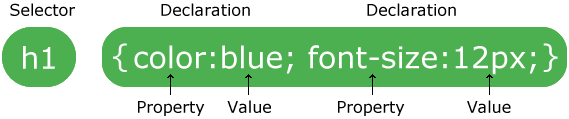
A CSS rule-set consists of a selector and a declaration block:
CSS selector
The selector points to the HTML element you want to style.
The declaration block contains one or more declarations separated by semicolons.
Each declaration includes a CSS property name and a value, separated by a colon.
A CSS declaration always ends with a semicolon, and declaration blocks are surrounded by curly braces.
In the following example all <p> elements will be center-aligned, with a red text color:

Example

{
    color: red;
    text-align: center;
}

CSS Selectors

CSS selectors are used to "find" (or select) HTML elements based on their element name, id, class, attribute, and more.

The element Selector

The element selector selects elements based on the element name.
You can select all <p> elements on a page like this (in this case, all <p> elements will be center-aligned, with a red text color):

Example

{
    text-align: center;
    color: red;
}

The id Selector

The id selector uses the id attribute of an HTML element to select a specific element.
The id of an element should be unique within a page, so the id selector is used to select one unique element!
To select an element with a specific id, write a hash (#) character, followed by the id of the element.
The style rule below will be applied to the HTML element with id="para1":

Example

#para1 {
    text-align: center;
    color: red;
}
NoteNote: An id name cannot start with a number!

The class Selector

The class selector selects elements with a specific class attribute.
To select elements with a specific class, write a period (.) character, followed by the name of the class.
In the example below, all HTML elements with class="center" will be red and center-aligned:

Example

.center {
    text-align: center;
    color: red;
}
You can also specify that only specific HTML elements should be affected by a class.
In the example below, only <p> elements with class="center" will be center-aligned:

Example

p.center {
    text-align: center;
    color: red;
}
HTML elements can also refer to more than one class.
In the example below, the <p> element will be styled according to class="center" and to class="large":

Example

<p class="center large">This paragraph refers to two classes.</p>
NoteNote: A class name cannot start with a number!

Grouping Selectors

If you have elements with the same style definitions, like this:
h1 {
    text-align: center;
    color: red;
}


h2 {
    text-align: center;
    color: red;
}


{
    text-align: center;
    color: red;
}
It will be better to group the selectors, to minimize the code.
To group selectors, separate each selector with a comma.
In the example below we have grouped the selectors from the code above:

Example

h1, h2, p {
    text-align: center;
    color: red;
}

CSS Comments

Comments are used to explain the code, and may help when you edit the source code at a later date.
Comments are ignored by browsers.
A CSS comment starts with /* and ends with */. Comments can also span multiple lines:

Example

{
    color: red;
    /* This is a single-line comment */
    text-align: center;
}


/* This is
a multi-line
comment */

CSS Introduction

What is CSS?

  • CSS stands for Cascading Style Sheets
  • CSS describes how HTML elements are to be displayed on screen, paper, or in other media
  • CSS saves a lot of work. It can control the layout of multiple web pages all at once
  • External stylesheets are stored in CSS files

Why Use CSS?

CSS is used to define styles for your web pages, including the design, layout and variations in display for different devices and screen sizes. 

CSS Solved a Big Problem

HTML was NEVER intended to contain tags for formatting a web page!
HTML was created to describe the content of a web page, like:
<h1>This is a heading</h1>
<p>This is a paragraph.</p>
When tags like <font>, and color attributes were added to the HTML 3.2 specification, it started a nightmare for web developers. Development of large websites, where fonts and color information were added to every single page, became a long and expensive process.
To solve this problem, the World Wide Web Consortium (W3C) created CSS.
CSS removed the style formatting from the HTML page!

CSS Saves a Lot of Work!

The style definitions are normally saved in external .css files.
With an external stylesheet file, you can change the look of an entire website by changing just one file!